Editing Templates
The template editor is where you write the source for a template and preview the document it produces.
Overview
A template is written in a lightweight markdown-style syntax. As you type, your source is parsed, highlighted, and any variables it references are tracked. When you're happy with it, save the template and export it as a PDF or plain text file.
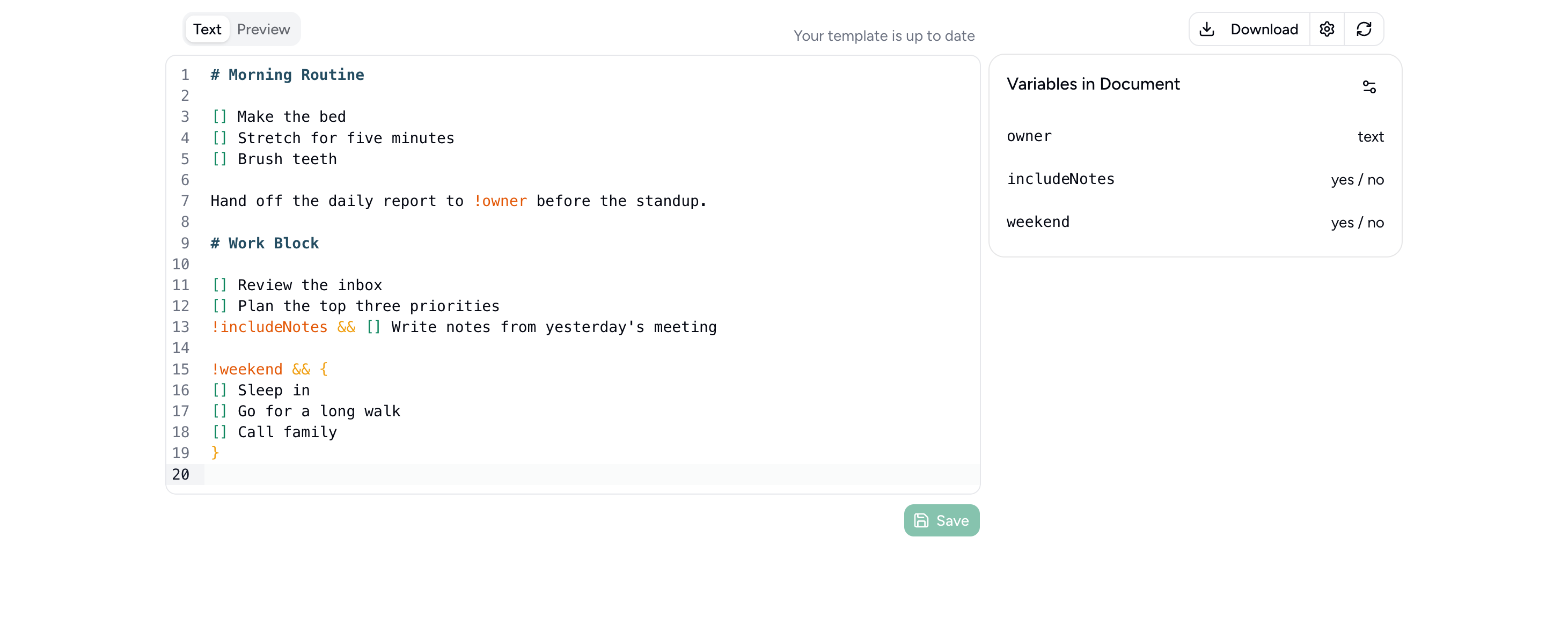
For the full list of what you can write in the editor, see Markdown Syntax.
Text and Preview
The editor has two tabs:
- Text — the source editor where you write the template. It provides syntax highlighting and line numbers.
- Preview — a rendered preview of the document exactly as it will appear when exported.
Saving
Use the Save button beneath the editor to persist your changes. The indicator next to the tabs reflects the current state — for example, Your template is up to date once your most recent edits have been saved.
Variables in Document
The panel on the right lists every variable your template references, along with the type inferred from how each one is used (for example text for a value interpolated into a line). Variables update live as you edit.
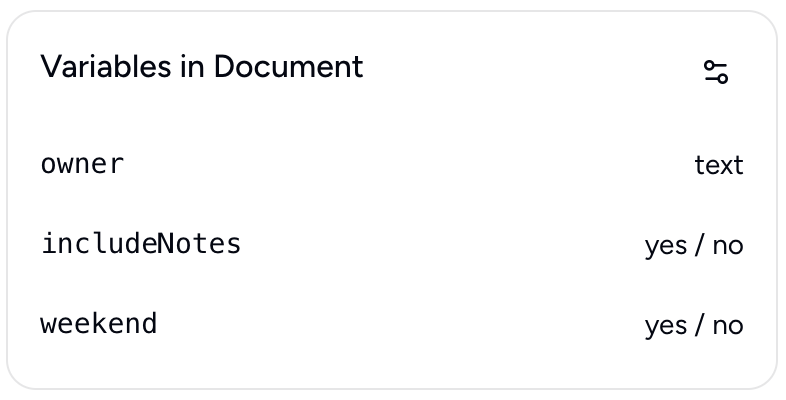
Use the settings icon in the panel's corner to open Set Variable Defaults, where you can give each variable a default value. Defaults are used when a value isn't supplied at export time. See Markdown Syntax for how variable types are determined.
Global Variables
A set of date and time variables are automatically available in every template — you don't need to define or supply them at export time.
dayOfWeek— the full name of the current day, e.g.Monday.dayOfMonth— the numeric day of the month, e.g.5.monthOfYear— the full name of the current month, e.g.July.year— the four-digit current year, e.g.2026.isoDate— the current date and time in ISO 8601 format, e.g.2026-07-05T14:30:00.000Z.localDate— the current date formatted according to the server's locale, e.g.7/5/2026.
All global variables are resolved at export time, so they always reflect the date the PDF was generated. If your template also defines a variable with the same name, the value you supply takes precedence.
Toolbar actions
- Download — export the current template as a PDF.
- Settings (the gear icon) — rename or delete the template.